Manual Editing
Adding new points
- Errant Paths 1.1 and later
- Errant Paths 1.0 and prior
The easiest way to add new points to a Path is by holding Ctrl + Q and clicking LMB over the landscape.
You can also add points in the middle of a Path, by selecting a PathSpline point and then using Ctrl + Q + LMB combination.
The new point can be connected to the another Path by clicking on the pink arrow.
When adding new points along another Path, you can replace the underlying Paths by using Ctrl + Q + R + LMB combination.
Another way to add new points is by selecting the first or last PathSpline point and dragging it while holding Alt.
You can also right click on the PathSpline and select Add Spline Point Here.
Unreal also allows creating some spline shapes automatically (e.g. circle, arc, straight line). To do that, right-click on the spline point and open the "Spline Generation Panel". After adding the points, just close the panel, so the Path update can proceed.
The easiest way to add new points to a Path is by holding Ctrl + Q and clicking LMB over the landscape.
You can also add points in the middle of a Path, by selecting a PathSpline point and then using Ctrl + Q + LMB combination.
Another way to add new points is by selecting the first or last PathSpline point and dragging it while holding Alt.
You can also right click on the PathSpline and select Add Spline Point Here.
Unreal also allows creating some spline shapes automatically (e.g. circle, arc, straight line). To do that, right-click on the spline point and open the "Spline Generation Panel". After adding the points, just close the panel, so the Path update can proceed.
Rotating Path
- Errant Paths 1.1 and later
- Errant Paths 1.0 and prior
You can rotate a Path around its center by holding Ctrl + E, or around its starting point by using Unreal’s rotation mode
You can rotate a Path around its starting point by using Unreal’s rotation mode
Projecting points onto the landscape
- Errant Paths 1.2 and later
- Errant Paths 1.1 and prior
You can adjust the height of PathSpline points relative to the landscape by holding Ctrl + W and scrolling the mouse wheel. This projects the Path, or a section of the Path, onto the landscape or at a given height above it.
Holding Ctrl + W and clicking the middle mouse button (MMB) resets the points to the landscape height. Clicking the right mouse button (RMB) resets them to their original height.
The heights that the tool snaps to can be defined in the PathDescription. These values could represent the heights for each level of a highway interchange or subway tunnels at different depths.
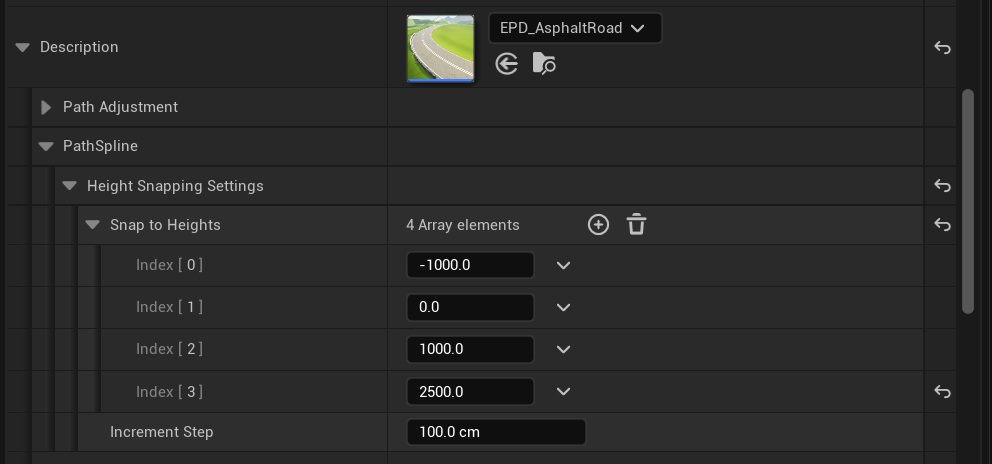
This tool is used while editing a Path and is separate from projecting onto geometry/landscape performed during Path generation. Both can be used together. A Path projected onto uneven terrain while editing may still be above or below the landscape in between its PathSpline points, so Paths that need to follow the terrain closely (e.g. dirt trails) usually benefit from both projections.
Projecting PathSpline points onto the landscape while editing is not supported in Errant Paths 1.1 and prior. Use Project Onto Geometry during Path generation instead.